 Visto Docs
Upload and organize media
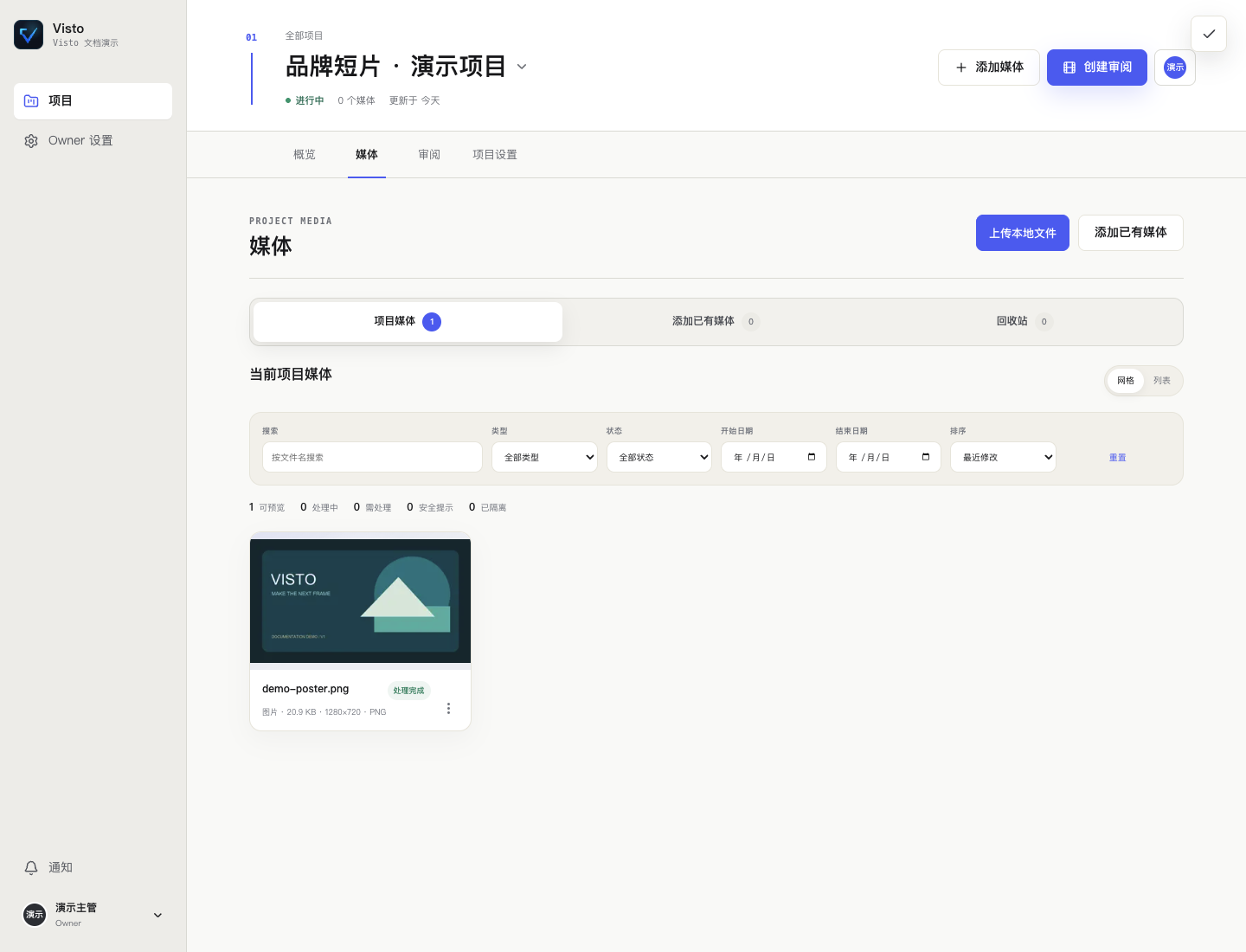
Open the intended project's Media page before uploading.
Upload files
Choose files or use the available drop area. Wait for the transfer result, then check the safety and processing states. Open the asset and confirm the preview and file information.
| Stage | Meaning |
|---|---|
| Upload | File transfer progress |
| Safety checks | Whether the file can continue into collaboration |
| Media processing | Preview, metadata, and derived tasks |
A completed upload may still be processing. If a preview fails, inspect the task and runtime before deleting and uploading the source again.
Find and organize
Search by filename, then narrow results by type, processing status, date, and sorting. Reset filters and check the project and page number if a new upload appears missing.
Grid view emphasizes images; list view emphasizes file information. Asset details contain renaming, metadata, previews, and version history.
Adding existing media lists only assets you can use. Cross-project copy or cut operations do not by themselves prove a physical copy to another disk. Verify the target project's access and readability. Removing an asset from the current project sends its project relationship to the recycle bin.
Use one asset for revisions of the same work. Independently delivered aspect ratios or language editions can be separate assets.